
Trong bài tập này Tôi sẽ trình bày về cách lưu trạng thái của ứng dụng (liên quan tới Shared Preferences) và cách tạo các màn hình cấu hình (liên quan tới Shared Preference Change Listeners)
————————————————————————————————————————–
-A- Cách lưu trạng thái của ứng dụng:
Bước 1:
– Gọi hàm getSharedPreferences, hàm này trả về SharedPreferences và nó có 2 đối. Đối số 1 là tên tập tin để lưu trạng thái, đối số 2 là kiểu lưu. Chú ý là đối số 1 ta chỉ ghi tên tập tin (không cần ghi phần mở rộng, vì phần mở rộng mặc nhiên của nó là .xml khi ta lưu thành công), đối số 2 thường ta để là MODE_PRIVATE:
SharedPreferences pre=getSharedPreferences(“my_data“, MODE_PRIVATE);
Bước 2:
– Tạo đổi tượng Editor để cho phép chỉnh sửa dữ liệu:
SharedPreferences.Editor edit=pre.edit();
Bước 3:
– Đưa dữ liệu muốn lưu trữ vào edit bằng các phương thức edit.putXXX(“key”,”value”);
Tùy vào kiểu dữ liệu ta muốn lưu trữ mà XXX được thay thế bởi các kiểu dữ liệu phù hợp:
editor.putString(“user”, “drthanh”);
editor.putString(“pwd”, “hoilamgi”);
editor.putBoolean(“checked”, true);
Bước 4:
– Lưu trạng thái bằng cách gọi dòng lệnh:
editor.commit();
————————————————————————————————————————–
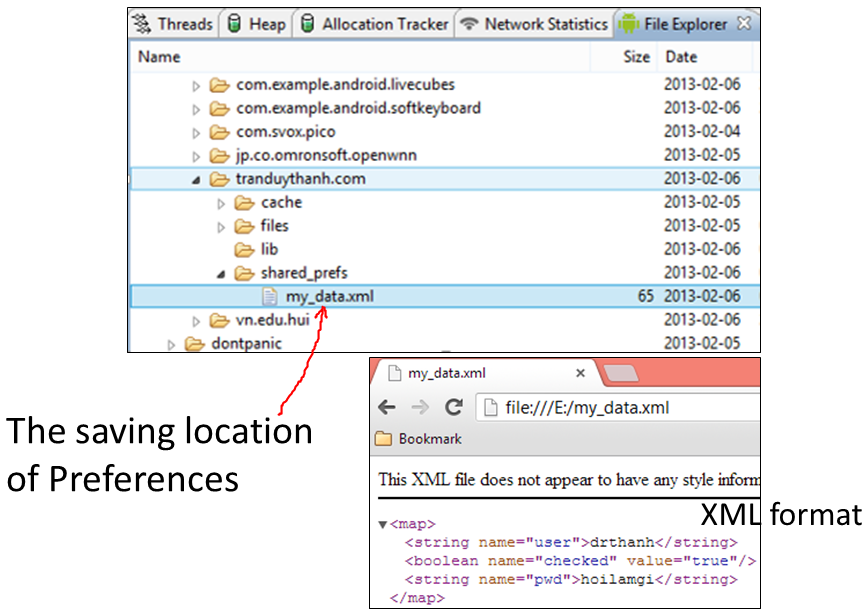
Sau khi bạn làm đúng 4 bước trên thì chương trình sẽ lưu được trạng thái, như trên đã nói mặc định phần mở rộng là .xml (tức là trạng thái được lưu dưới định dạng tập tin XML). Bên trên ta đặt tên là my_data có nghĩa là chương trình sẽ tạo ra tập tin my_data.xml (bạn mở DDMS lên để xem) – tự động nó sẽ lưu vào thư mục shared_prefs như hình bên dưới:
————————————————————————————————————————–
-B- Cách đọc trạng thái đã lưu:
Rất đơn giản
Bước 1:
– Gọi hàm getSharedPreferences để trả về đối tượng SharedPreferences (giống như phần lưu trạng thái mà Tôi nói ở trên)
SharedPreferences pre=getSharedPreferences (“my_data“,MODE_PRIVATE);
Bước 2:
– Gọi các phương thức getXXX(“key”,giá trị mặc định) để lấy các giá trị lúc trước được lưu
boolean bchk=pre.getBoolean(“checked”, false); //đối số 2 Tôi để false là giá trị mặc định khi nó tìm không thấy key =checked
String user=pre.getString(“user”, “”);//lấy giá trị được lưu trong key=user, nếu không thấy thì gán giá trị mặc định là chuỗi rỗng
String pwd=pre.getString(“pwd”, “”);//giống trên
String user=pre.getString(“user”, “”);//lấy giá trị được lưu trong key=user, nếu không thấy thì gán giá trị mặc định là chuỗi rỗng
String pwd=pre.getString(“pwd”, “”);//giống trên
————————————————————————————————————————–
******** Gợi ý *******
– Lưu và đọc trạng thái bạn nên viết thành các hàm riêng biệt cho dễ sử dụng
– Hàm lưu bạn gọi trong sự kiện onPause
– Hàm đọc bạn gọi trong sự kiện onResume.
******** END *******
Tôi sẽ làm ví dụ cụ thể dưới đây để bạn hiểu rõ hơn về lý thuyết:
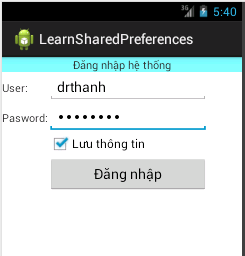
Ví dụ 1: bạn muốn tạo một màn hình đăng nhập có checkbox cho phép lưu lại thông tin đăng nhập, lần sau khởi đội lại thì nó sẽ lấy lại thông tin nhập lúc trước để người sử dụng đỡ phải mất công nhập lại (biết về Shared Preferences trong android), xem hình mình họa:
– Khi chọn nút đăng nhập, chương trình sẽ đóng Activity hiện tại và hiển thị Activity dưới đây:
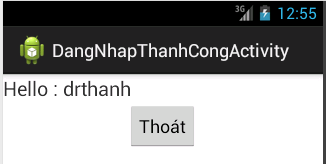
– Chọn nút Thoát, chương trình tiếp tục đóng Activity này giúp tắt hẳn các Activity trong ứng dụng.
– Khởi động lại chương trình sẽ phải tự động load lại thông tin đăng nhập trước đó (Nếu khi đăng nhập có chọn “Lưu thông tin“).
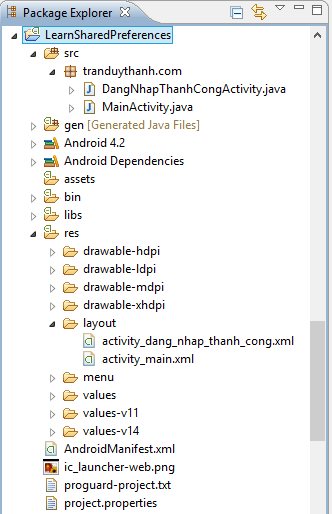
– Bạn xem cấu trúc của Project:
– Layout XML của màn hình chính (activity_main.xml): lập trình android, hướng dẫn lập trình android, tu hoc lap trinh android
1 2 3 4 5 6 7 8 9 10 11 12 13 14 15 16 17 18 19 20 21 22 23 24 25 26 27 28 29 30 31 32 33 34 35 36 37 38 39 40 41 42 43 44 45 46 47 48 49 50 51 52 53 54 55 56 57 58 59 60 61 62 63 64 65 66 67 68 69 70 71 72 73 74 75 76 77 78 79 80 81 82 83 84 85 86 87 88 89 90 91 92 93 94 95 96 97 | android:id="@+id/LinearLayout1" android:layout_width="match_parent" android:layout_height="match_parent" android:orientation="vertical" tools:context=".MainActivity" ><TextView android:id="@+id/textView1" android:layout_width="match_parent" android:layout_height="wrap_content" android:background="#80FFFF" android:gravity="center" android:text="Đăng nhập hệ thống" /><TableLayout android:layout_width="match_parent" android:layout_height="wrap_content" android:stretchColumns="*" ><TableRow android:id="@+id/tableRow1" android:layout_width="wrap_content" android:layout_height="wrap_content" ><TextView android:id="@+id/textView2" android:layout_width="wrap_content" android:layout_height="wrap_content" android:text="User:" /><EditText android:id="@+id/editUser" android:layout_width="wrap_content" android:layout_height="wrap_content" android:inputType="text" android:ems="10" ><requestFocus /> </EditText> </TableRow><TableRow android:id="@+id/tableRow2" android:layout_width="wrap_content" android:layout_height="wrap_content" > </TableRow><TableRow android:id="@+id/tableRow3" android:layout_width="wrap_content" android:layout_height="wrap_content" ><TextView android:id="@+id/textView3" android:layout_width="wrap_content" android:layout_height="wrap_content" android:text="Pasword:" /><EditText android:id="@+id/editPassword" android:layout_width="wrap_content" android:layout_height="wrap_content" android:ems="10" android:inputType="textPassword" /> </TableRow><TableRow android:id="@+id/tableRow4" android:layout_width="wrap_content" android:layout_height="wrap_content" ><CheckBox android:id="@+id/chksaveacount" android:layout_width="wrap_content" android:layout_height="wrap_content" android:layout_column="1" android:text="Lưu thông tin" /> </TableRow><TableRow android:id="@+id/tableRow5" android:layout_width="wrap_content" android:layout_height="wrap_content" ><Button android:id="@+id/btnlogin" android:layout_width="wrap_content" android:layout_height="wrap_content" android:layout_column="1" android:text="Đăng nhập" /> </TableRow> </TableLayout></LinearLayout> |
– Layout XML của activity_dang_nhap_thanh_cong.xml:
1 2 3 4 5 6 7 8 9 10 11 12 13 14 15 16 17 18 19 20 21 22 23 | android:id="@+id/LinearLayout1" android:layout_width="match_parent" android:layout_height="match_parent" android:orientation="vertical" tools:context=".DangNhapThanhCongActivity" ><TextView android:id="@+id/txtmsg" android:layout_width="match_parent" android:layout_height="wrap_content" android:text="TextView" android:textSize="20sp" /><Button android:id="@+id/btnThoat" android:layout_width="wrap_content" android:layout_height="wrap_content" android:layout_gravity="center" android:text="Thoát" /></LinearLayout> |
————————————————————————————————————————–

ConversionConversion EmoticonEmoticon